How to Use VSCode for Writing Git Commits

If the terminal window is too small for writing your commits, then using VSCode is your solution. Configuring it is easy. First, run the following command in the terminal: git config --global core.editor "code --wait".
git config --global core.editor "code --wait"Another option is to add these lines to your .gitconfig file.
[core]
	editor = code --wait
[difftool "vscode"]
    cmd = code --wait --diff $LOCAL $REMOTE
Save the .gitconfig, and after typing git commit, it will open an empty file to write the commit message.
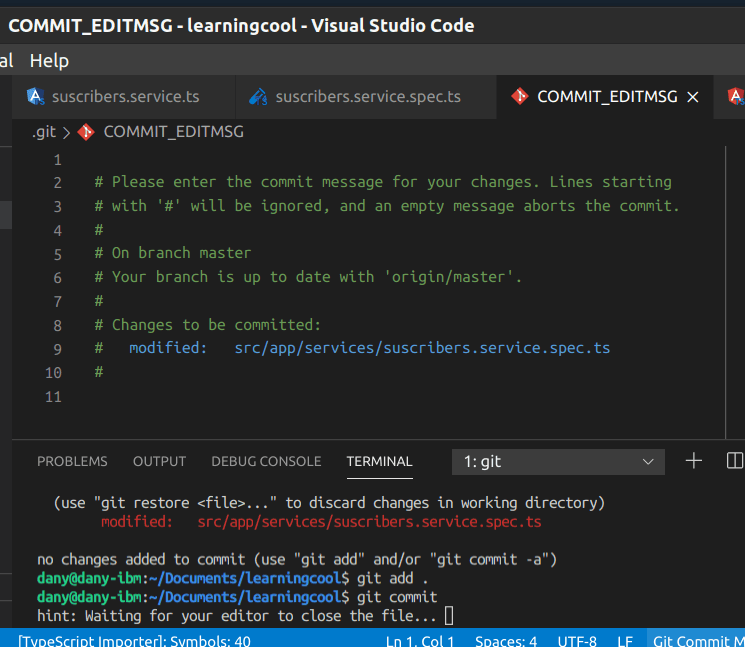
When closing the file, the message is the commit message.
Photo by Aaron Burden on Unsplash
Reflections on career, soft skills, productivity, and the human side of programming.
Related Articles
Share this article
If you found this guide helpful, consider sharing it with your team or fellow developers.
Real Software. Real Lessons.
I share the lessons I learned the hard way, so you can either avoid them or be ready when they happen.
Join 13,800+ developers and readers.
No spam ever. Unsubscribe at any time.