---
title: "Building a Local AI Chatbot with Gemini Nano, Chrome Canary, Angular, and Kendo AI Prompt"
date: "2024-07-06"
slug: "building-a-local-ai-chatbot-with-gemini-nano-chrome-canary-angular-and-kendo-ai-prompt"
author: "Dany Paredes"
canonical: "https://danywalls.com/building-a-local-ai-chatbot-with-gemini-nano-chrome-canary-angular-and-kendo-ai-prompt"
description: "The race for AI continues. Alternatives like Ollama help us interact with AI models on our machines. However, the Chrome and Google teams are moving one step forward by enabling Chrome with Gemini Nano running in our browsers.\nNote this API is exper..."
---
The race for AI continues. Alternatives like [Ollama](https://ollama.com/) help us interact with AI models on our machines. However, the Chrome and Google teams are moving one step forward by enabling Chrome with [Gemini Nano](https://deepmind.google/technologies/gemini/nano/) running in our browsers.
> Note this API is experimental and works in Chrome Canary
The [Chrome team is working to have a small LLM](https://developer.chrome.com/docs/ai/built-in) in our browser to perform common and simple tasks without needing an external API like OpenAI or running Ollama to build and interact with an LLM. The API helps us with tasks like summarizing, classifying, and rephrasing. We can read about the API, but a scenario is the best way to learn and see it in action.
## Scenario
We work at a company that wants to create a proof of concept (POC) to interact with common tasks in an LLM model. Our goal is to have a chat where users can ask questions or choose from a list of common questions.
How can we do it?
* Use Angular 18 and [Kendo AI Prompt](https://www.telerik.com/kendo-angular-ui/components/conversational-ui/aiprompt/) to build a clean interface.
* Use Gemini Nano in [Chrome Canary LLM](https://www.google.com/chrome/canary/) interaction.
Let's get started!
## Enable Gemini Nano in Chrome Canary
First, download and install Chrome Canary [https://www.google.com/chrome/canary/](https://www.google.com/chrome/canary/) after that enable the Prompt API for Gemini Nano.
Next, activate Gemini Nano in the browser with the following flags.
* `chrome://flags/#prompt-api-for-gemini-nano`
* `chrome://flags/#optimization-guide-on-device-model`

After activating these options, remember to restart Chrome.
The Gemini Nano takes time to download. To confirm, open Chrome Canary and go to `chrome://components`. Check if the **Optimization Guide On Device Model** has version **2024.6.5.2205**.
> Note: Thanks to @[Bezael Pérez](@bezael) feedback, be sure to have at least 2GB of Free space in your machine

After that, we are ready to start coding! Let's go!
## Set Up the Project
First, set up your Angular application with the command `ng new gemini-nano-angular`
```bash
ng new gemini-nano-angular
cd gemini-nano-angular
npm install
```
Kendo UI provides a schematics command for easy registration of its Angular Conversational UI in our project.
> I'm using Kendo UI [it is 30-day FREE trial. Free technical support and training during your trial and no credit card required.](https://www.telerik.com/kendo-angular-ui)
```bash
ng add @progress/kendo-angular-conversational-ui
ℹ Using package manager: npm
✔ Found compatible package version: @progress/kendo-angular-conversational-ui@16.3.0.
✔ Package information loaded.
The package @progress/kendo-angular-conversational-ui@16.3.0 will be installed and executed.
Would you like to proceed? Yes
✔ Packages successfully installed.
UPDATE package.json (1663 bytes)
UPDATE angular.json (2893 bytes)
✔ Packages installed successfully.
UPDATE src/main.ts (295 bytes)
UPDATE tsconfig.app.json (455 bytes)
UPDATE tsconfig.spec.json (461 bytes)
UPDATE angular.json (2973 bytes)
```
Perfect, we have all things configured, let's start to create our chat prompt interface with Kendo AI Prompt.
## Using AI Prompt
We want to build a clean interface to interact with the LLM, so I choose to use [AI Prompt](https://www.telerik.com/kendo-angular-ui/aiprompt). The AI Prompt is a component of Kendo UI that allows us to create a stylish interface for interacting with the LLM. It also includes common actions like copy, retry, or rate the answer, and more.
> II highly recommend checking out the [official docs](https://www.telerik.com/kendo-angular-ui/components/conversational-ui/aiprompt/) with great demos.
The `kendo-aiprompt` comes with a set of child components and properties. First, open the `app.component.html`, remove the default HTML markup, and add two components: `kendo-aiprompt-prompt-view` and `kendo-aiprompt-output-view`.
> Remember to add the `AIPromptModule` in the imports sections.
We customize the `kendo-aiprompt-view` title with the property `buttonText` set to "☺️ Ask your question".
```xml
Free Local Gemini
```
Save changes and run `ng serve -o` and tada!! 🎉 we have our clean chatbot UI ready!

It's time to customize the [kendo-aiprompt](https://www.telerik.com/kendo-angular-ui/components/conversational-ui/aiprompt/) to allow the user to change the activeView, set default suggestions, and, of course, set promptOutputs from the LLM and handle the promptRequest. Let's do it!
### Customize AIPrompt
Open `app.component.ts`. Here, we need to perform the following actions. First, we add the properties. These properties will be bound to the `` component to customize and react to changes.
* `view`: to switch between views.
* `promptOutputs`: to get the output from LLM.
* `suggestions`: a list of default text suggestions.
Last, create an empty method `onPromptRequest` to get the text from `kendo-aiprompt.` The final code looks like this:
```javascript
export class AppComponent {
public view: number = 0;
public promptOutputs: Array = [];
public suggestions: Array = [
'Tell me a short joke',
'Tell me about Dominican Republic'
]
public onPromptRequest(ev: PromptRequestEvent): void {
console.log(ev)
}
}
```
Next move to the `app.component.html`, and bind `kendo-aiprompt` with the properties and method, the final code looks like:
```javascript
Free Local Gemini
```
We have the component ready, but what about LLM and Gemini ?, well we need to create a service to interact with the new API `window.ai.`
### Using `window.ai` API
First, create a service using the Angular CLI `ng g s services/gemini-nano` and open the `gemini-nano.service.ts` file.
Next, declare the private variable `system_prompt`. It adds extra information to the prompt for the LLM.
```javascript
import {Injectable} from '@angular/core';
@Injectable({providedIn: 'root'})
export class GeminiNanoService {
#system_prompt = 'answer in plain text without markdown style'
}
```
Next, create the method `generateText` with a string as a parameter. This method will return a promise from the `window.ai` API. Wrap the body of the method with a try-catch block to handle cases where the user is not using Chrome Canary.
The `window.ai` API provides a set of methods, but in this example, I will use `createTextSession` to enable an LLM session. It returns an instance to interact with the LLM.
Create a new variable `textSession` and store the result from the `window.ai.createSession` method.
```javascript
try {
const textSession = await window.ai.createTextSession();
}
catch (err){
return 'Ups! please use chrome canary and enable IA features'
}
```
Oops, I can't access `window.ai.createTextSession`. I received the error: **Property 'ai' does not exist on type 'Window & typeof globalThis'**.
### The error: Property does not exist on type Window & typeof globalThis

When working with the `Window` type, the definition is in `lib.dom`. However, since `ai` is not defined there, you will encounter the `TS2339: Property ai does not exist on type Window & typeof globalThis` error.
But how do you fix this? Just follow these steps:
1. Create an `index.d.ts` file in the `src/types` directory.
2. Export and declare the `globalWindow` interface, then add the necessary properties. In my case, I declare only the methods needed for this example.
What are the methods of `window.ai`? Open the developer tools in Chrome Canary and type `window.ai`. It will return a list of methods.

We define an interface for each method and type declaration. To save you time, here is the complete AI API type declaration.
```typescript
export {};
declare global {
interface AISession {
promptStreaming: (prompt: string) => AsyncIterableIterator;
prompt: (prompt: string) => Promise;
destroy: () => void;
}
interface AI {
canCreateGenericSession: () => Promise;
canCreateTextSession: () => Promise;
createGenericSession: () => Promise;
createTextSession: () => Promise;
defaultGenericSessionOptions: () => object;
defaultTextSessionOptions: () => object;
}
interface Window {
ai: AI
}
}
```
Finally, add a reference to the file in the `tsconfig.json` file.
```javascript
"typeRoots": [
"src/types"
]
```
Ok, let's continue working with the `window.ai` api.
The `textSession` object provides the method `prompt` to interact. Before sending the user's question, we combine it with the system prompt to improve our query. We then send the combined prompt to the `session.prompt` method and return the promise.
The final code looks like this:
```javascript
import {Injectable} from '@angular/core';
@Injectable({providedIn: 'root'})
export class GeminiNanoService {
#system_prompt = 'answer in plain text without markdown style'
async generateText(question: string): Promise {
try {
const textSession = await window.ai.createTextSession();
const prompt_question = `${question} ${this.#system_prompt}`;
return await textSession.prompt(prompt_question);
}
catch (err){
return 'Ups! please use chrome canary and enable IA features'
}
}
}
```
We have our service ready so it time to connect with the kendo-ai prompt to make it interactive.
## Interact with LLM
We are in the final step, so we only need to make a small changes in the `app.component.ts`, first inject the `GeminiNanoService`.
Next, we make a change in the `onPromptRequest`, by call the service method `generateText` pass the prompt and wait for the promise return, in the them method, we need to get the response and create a `PromptOut` object and unshift to the `promptOutputs` array and switch to the view one.
The final code looks like:
```javascript
import {Component, inject} from '@angular/core';
import { RouterOutlet } from '@angular/router';
import {GeminiNanoService} from "./services/gemini-nano.service";
import {
AIPromptModule, PromptOutput,
PromptRequestEvent
} from "@progress/kendo-angular-conversational-ui";
@Component({
selector: 'app-root',
standalone: true,
imports: [RouterOutlet, AIPromptModule],
templateUrl: './app.component.html',
styleUrl: './app.component.css'
})
export class AppComponent {
public view: number = 0;
public promptOutputs: Array = [];
public suggestions: Array = [
'Tell me a short joke',
'Tell me about dominican republic'
]
private nanoService = inject(GeminiNanoService)
public onPromptRequest(ev: PromptRequestEvent): void {
this.nanoService.generateText(ev.prompt).then((v) => {
const output: PromptOutput = {
id: Math.random(),
prompt: ev.prompt,
output: v,
}
this.promptOutputs.unshift(output);
this.view = 1;
}
)
}
}
```
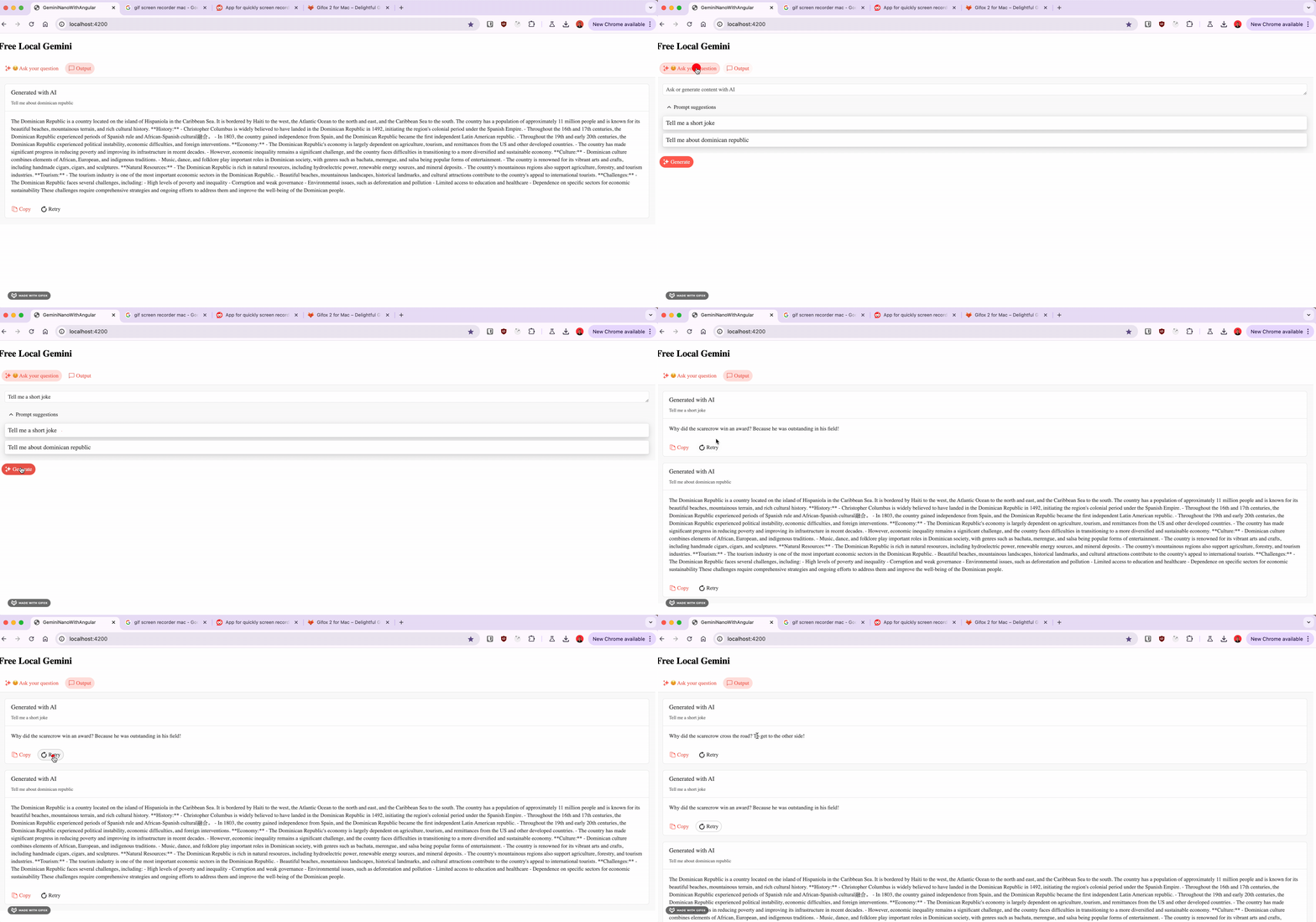
Save the changes, and now we can interact with Gemini Nano in Chrome Canary!
## Conclusion
We learned how to use Gemini Nano, an experimental local LLM running within Chrome Canary. We build a chat application with Angular 18 and Kendo UI Conversational AI Prompt and run our locally-run chatbot with just a few lines of code.
The fun doesn't stop here. I highly recommend checking out the official website to learn more about the AI API.
* Source: [https://github.com/danywalls/gemini-nano-with-angular](https://github.com/danywalls/gemini-nano-with-angular)
* [https://developer.chrome.com/docs/ai/built-in](https://developer.chrome.com/docs/ai/built-in)
* [https://deepmind.google/technologies/gemini/nano/](https://deepmind.google/technologies/gemini/nano/)
* [https://www.telerik.com/kendo-angular-ui/components/conversational-ui/aiprompt/](https://www.telerik.com/kendo-angular-ui/components/conversational-ui/aiprompt/)